

Often, there are some cells in our worksheet where we have important formulas. Those formulas help us calculate some crucial values. In this situation, it’s really important to keep an eye on those cells to check whether the calculation is correct and there is no error.
But the point is, the more of these cells you have, the more time and effort you need to track them. In Excel, there is an option called the Watch Window, which Microsoft introduced in Excel 2002, and it can be your tool of the trade once you know how useful it is.
In this post, you will learn how to track your important cells in Excel using the Watch Window.
It’s one of those Excel tricks that can help you improve your Basic Excel Skills.
Key Points
- Monitoring Multiple Cells:One of the Watch Window’s valuable features is its ability to monitor multiple cells, even from different sheets and open workbooks. This is incredibly helpful when you work across several sheets.
- Auditing and Debugging:The Watch Window is not just a monitoring tool; it’s also an excellent resource for auditing and debugging your worksheets.
- Display Features:Each cell added to the Watch Window will display several details. These include the workbook name, the worksheet name, the cell name, the cell address, the current cell value, and the formula in the cell (if any).
What Is the Watch Window in Excel?
The Watch Window is a useful feature in Microsoft Excel that allows you to keep a close eye on the values of certain cells, even as you navigate to different parts of your worksheet. It can be particularly helpful in large spreadsheets where you need to keep track of the values of key cells that sit on other sheets or far away from where you are working.
Where Is the Watch Window on the Excel Ribbon?
To locate the Watch Window on the Excel Ribbon, follow these steps:
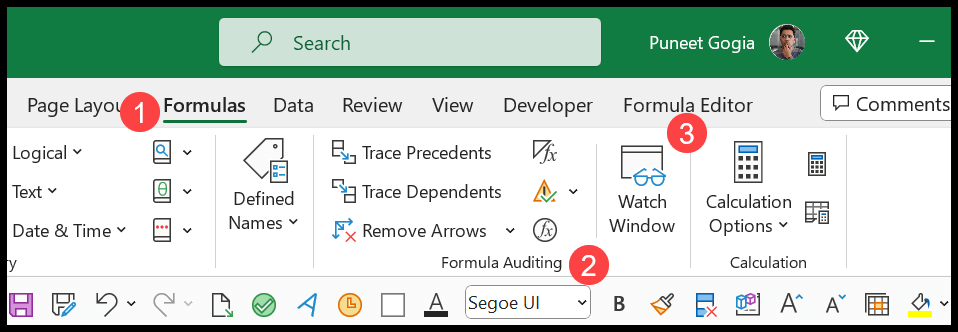
- Navigate to the Formulas tab: Once you’ve opened the workbook, navigate to the ‘Formulas’ tab in the Excel Ribbon.
- Look for the Watch Window button: Within the ‘Formulas’ tab, look for the ‘Watch Window’ button, which is in the ‘Formula Auditing’ group.
- Open the Watch Window: Click the ‘Watch Window’ button to open the Watch Window. It opens as a small window that floats on top of your workbook. From this window, you can add the cells you want to monitor.
The Watch Window is in every desktop version of Excel for Windows, including Microsoft 365, 2024 and 2021. On a Mac, you’ll find it in the same place (Formulas → Watch Window) in Excel for Microsoft 365, Excel 2024 and Excel 2021.
Shortcut Key to Open the Watch Window
Alt + M + W is the shortcut to quickly open the Watch Window in Excel without navigating the menu options. You press these keys one after the other, not all together.
- Press and release the ‘Alt’ key on your keyboard.
- Press the ‘M’ key to open the Formulas tab.
- Press the ‘W’ key to open the Watch Window.
Press the same keys again to close the Watch Window. This shortcut is for Excel on Windows.
Adding a Cell to the Watch Window in Excel
Once you’ve opened the Watch Window, you can add cells by clicking the ‘Add Watch’ button. Here are the steps:

- Add a Cell: In the Watch Window pane, click the ‘Add Watch’ button. A dialog box will appear.
- Select the Cell: In the dialog box, click the cell selector button on the right. It will minimize the dialog box and allow you to select a cell in your worksheet.
- Choose the Cell: Navigate to the cell you want to monitor and click on it. It will add the cell reference to the dialog box.
- Add the Selection: Click the ‘Add’ button in the dialog box to confirm the selection. It will add the cell to the Watch Window.
There’s a quicker way as well. Select the cells first, and then click ‘Add Watch’. The dialog box already has your selection in it, so you just need to click ‘Add’. You can select a whole range this way, and each cell gets its own row in the Watch Window. On a Mac, it works the other way around: open the Watch Window first, and then select the cells.
Add All Formula Cells to the Watch Window at Once
If you want to watch every formula on a sheet, you don’t need to pick them one by one. Excel can select all the formula cells for you:
- First of all, go to the Home tab → Find & Select → Formulas. This selects every cell with a formula on the active sheet.
- After that, open the Watch Window and click ‘Add Watch’.
- In the end, click ‘Add’, and all those formula cells go into the Watch Window in one go.
On a sheet with hundreds of formulas, this makes a long list, so it’s better to use it on a sheet with a handful of key formulas.
Monitoring Important Cells with the Watch Window
You can inspect and audit the following details with the Watch Window, as each one has its own column:
- Workbook Name: When you add a cell to the Watch Window, it captures the workbook’s name.
- Worksheet Name: The worksheet name will also be captured along with the workbook name. When you have a lot of worksheets in your workbook, it’s easy to identify cells by their worksheet names.
- Name: It will also capture the name of the cell or range if you have given it a defined name.
- Cell Address: It will show the address of the cell.
- Cell Value: You have the cell’s value in the Watch Window. It updates as soon as the value in the cell changes, which makes it easy to audit values in the cell.
- Formula: If the added cell has a formula, you will see it in your Watch Window. This makes it easy to inspect and audit it.
Deleting a Cell from the Watch Window
To delete a cell from the Watch Window, follow these steps:

- Open the Watch Window: Navigate to the Formulas tab in your Excel Ribbon. You will find the ‘Watch Window’ button in the ‘Formula Auditing’ group in this tab. Click on this button to open the Watch Window.
- Select the Cell: In the Watch Window, click on the cell you want to remove. It will highlight the cell.
- Delete the Cell: Click the ‘Delete Watch’ button at the top of the Watch Window. This will remove the cell from the Watch Window.
To delete more than one cell, hold the Ctrl key (Command on a Mac) and click each cell you want to remove. You can also use Shift + Arrow keys or Shift + End to select a block of cells. Then click ‘Delete Watch’. Deleting a watch only removes it from the list; the cell and its formula stay as they are.
Fix the Watch Window Below Your Excel Ribbon
You can also fix it below your ribbon. To do that, just double-click on the title bar of the Watch Window.

Or, you can do this by clicking on the push pin icon at the top right of the Watch Window.
You can also drag the Watch Window to the top, bottom, left or right side of the Excel window to dock it there. To float it again, drag it away by its title bar.
When to Use the Watch Window
Here are a few situations where I find the Watch Window most useful:
- Changing inputs on one sheet: You change the inputs on an “Inputs” sheet and watch the totals on a “Summary” sheet update, without jumping between the sheets.
- Checking a big model: You keep the key results of a large model in view while you scroll through thousands of rows.
- Finding a problem: You watch the cells that feed a wrong result and see which one changes when you edit the data, which helps you find where an error starts.
- Working with two workbooks: You watch a cell in another open workbook, like a total from a linked file, while you work in the current one.
Important Points
- You can add as many cells as you want to monitor, but using too many cells can slow down your workbook.
- Double-click on a cell’s entry in the Watch Window to jump to that cell and select it.
- You can only track a cell from another workbook while that workbook is open.
- You can only have one watch per cell, so adding the same cell again doesn’t create a second entry.
Frequently Asked Questions
Is the Watch Window available in Excel for Mac?
Yes. It’s on the Formulas tab in Excel for Microsoft 365 for Mac, Excel 2024 for Mac and Excel 2021 for Mac. The only difference is the order: open the Watch Window first, and then select the cells you want to add.
Why did a cell disappear from the Watch Window?
If the cell is in another workbook, it only shows in the Watch Window while that workbook is open. Open the workbook again, and the cell comes back.
Do my watches stay when I close the Watch Window?
Yes. Closing the Watch Window only hides it. When you open it again, your cells are still in the list until you delete them with ‘Delete Watch’.
Does the Watch Window show the formula or the result?
Both. The Value column shows the current result, and the Formula column shows the formula behind it, so you can check them side by side without clicking on the cell.

thank you sir
Hello Dear,
I am trying to run macro with the use of watch window which focus on specific cell and as it’s value change, macro should run and genrate new file as per coding. But right now it is not working.
So, Can you provide me some guidance how should i try to compensate this issue ?
Dear,
Can you please tell me by watching specific cell continously if any change occure then how i cam save particular file by cell value.?
I stuck with this problem with few days if you can help me to get it out please.
very interesting.
Great job Punnet
You mentioned that the Watch Window started in 2013. I have it on my 2010 version as well.