

In the FILTER function, you can specify data and a column to test a condition, and it will return all the rows from the data where the condition is met. If you have data from different departments and you only want data from the IT department, specify that as the condition, and it will filter and return that part of the data in the result.
Basic Example to use Filter Function
From this data, I want to filter the data for the IT department. and when I use =FILTER(A3:E12,B3:B12=”IT”) Excel checks the Department column, keeps only the rows where it says IT, and spills the complete matching rows into the cells below and to the right.
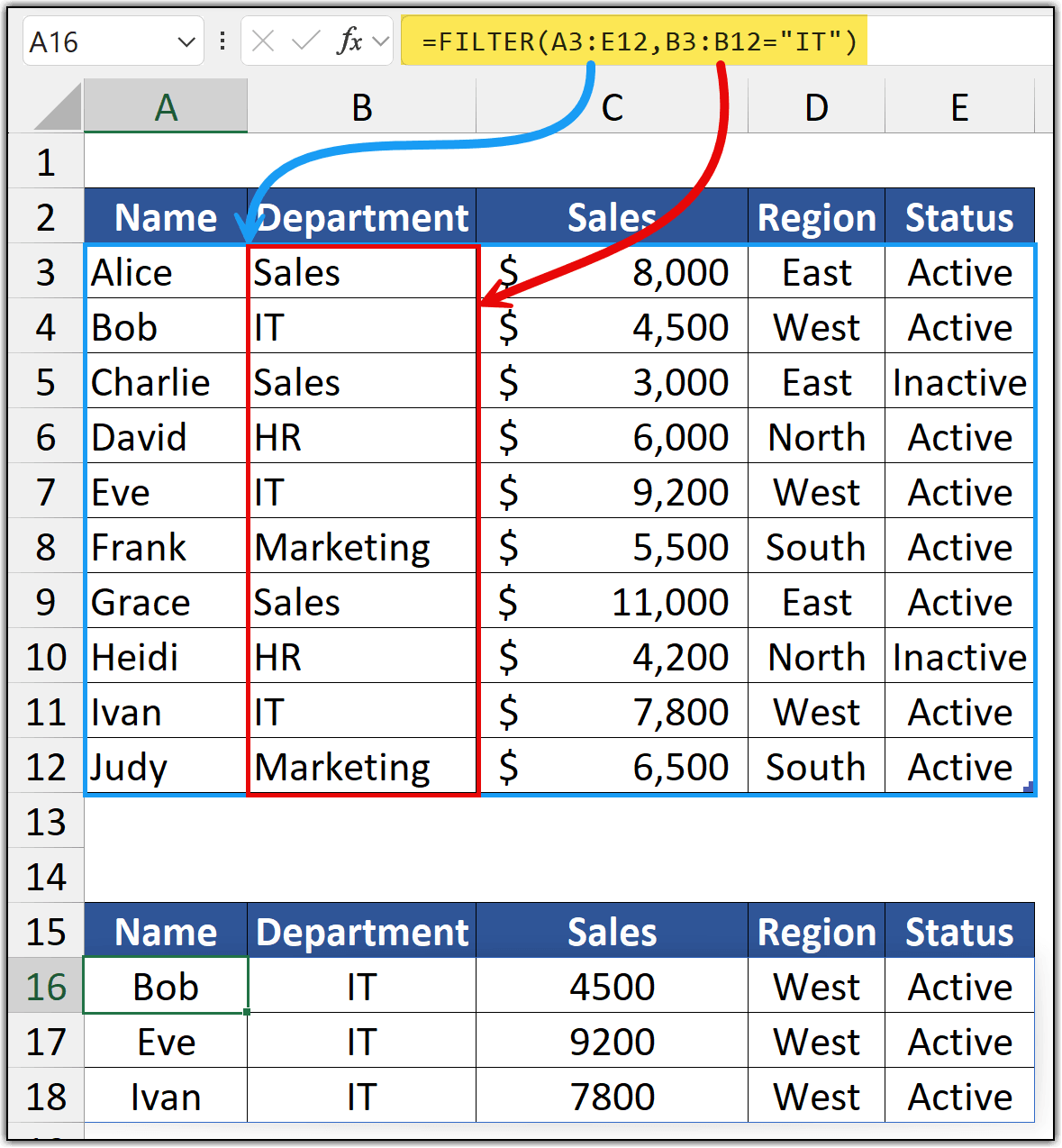
I’ve typed this into cell A16, and nothing else. Cells B16:E18 are empty as far as Excel is concerned. Everything you see in that block came from the one formula in A16.
FILTER needs two things from you, and a third that’s optional, but you should use it. The syntax of the FILTER functions is below:
=FILTER(array,include,[if_empty])
The array (A3:E12) is what you want back. I asked for all five columns, so I get complete rows in the result, not just the names. Notice it starts at row 3, not row 2. I’ve left the header row out on purpose, which is why row 15 in my sheet is a header I typed by hand.
The include argument (B3:B12=”IT”) is the condition. This is the part people find odd at first, so let me slow down on it.
What Excel does with the condition…
B3:B12=”IT” isn’t a single comparison. Excel runs it against every cell in that range and builds a column of TRUE and FALSE values:
Then FILTER lines this column up against the array, position by position. Position 2 is TRUE, so row 4 (Bob) is kept. Position 5 is TRUE, so row 7 (Eve) is kept. Position 9 is TRUE, so row 11 (Ivan) is kept. Everything else gets dropped.
That’s the whole mechanism. Once you see it as “a list of yes/no answers, one per row”, every other condition you’ll ever write makes sense.
Formatting does not come along.
Look at the Sales column in the two tables. Up top, it reads $8,000 and $4,500. In the result, it reads 4500, 9200, 7800.
FILTER returns values. It does not return number formats, fills, borders, or fonts. Whatever formatting is already sitting in the destination cells is what you’ll see.
The fix is to format the destination yourself and format a few rows beyond your current result. Today, three IT people spill into rows 16 to 18. Next month it might be six, and rows 19 to 21 will land in unformatted cells if you only styled what you could see.
Make it worth the trouble
Here’s the thing. If you hardcode “IT” into the formula, you’ve built something a regular filter already does, except now it’s harder to change. The version worth building points at a cell:
=FILTER(A3:E12,B3:B12=H1,"No records found")
Put a drop-down in H1 with your department list. Pick IT, and you get the IT team. Pick HR and the block redraws itself. One formula, and you’ve got a small report anyone can drive without touching a single formula.
That’s the real reason to learn FILTER. Not because it filters, but because the result is live and it’s addressable from another cell.
Filtering by a number instead of text
Let me change the condition and leave everything else alone. This time I want everyone who sold more than 5,000, whatever department they’re in.
I’ve put it in G2, so the result lands to the right of the source instead of below it. Seven people clear the bar. Bob at 4,500, Charlie at 3,000, and Heidi at 4,200 don’t, so they’re gone.

Now put the two conditions next to each other.
B2:B11="IT"      text, so it needs quotes
C2:C11>5000      a number, so it doesn't
This is the mistake I see most often. Text goes in quotes, numbers don’t. Write >”5000″ and Excel compares your sales figures against the text “5000”, which is a different question entirely. All the usual operators work here: >, <, >=, <=, and <> for “not equal to”.
One more thing worth noticing. The IT filter returned three rows. This one returns seven. Same formula shape, same source data, completely different footprint. You don’t decide how big a FILTER result is. Your data does, and your data changes.
Filtering on Two Conditions at Once
Sometimes one condition isn’t enough. Here I want people from Sales and who sold more than 5,000.
Two people make it. Alice at 8,000 and Grace at 11,000. Charlie is in Sales too, but at 3,000 he fails the second test, so he’s out.
The trick is the asterisk. Multiply two conditions and you get AND. Each condition produces its own column of TRUE and FALSE, and Excel treats those as 1 and 0 when you do arithmetic on them. Multiply row by row and only the rows that came back TRUE twice end up as 1 × 1 = 1. Everything else hits a zero somewhere and drops out.
Swap the * for a + and you get OR instead, where either condition being true is enough.
Wrap each condition in its own brackets: (B2:B11=”Sales”) * (C2:C11>5000). Without them Excel reads the expression in the wrong order and you’ll get an error or a wrong answer.
Filtering on Either Condition
Change the operator and you change the question. Here I want IT or HR, so anyone from either department comes through.
Five people this time. Bob, Eve, and Ivan from IT, David and Heidi from HR.
Plus means OR. Same reasoning as the last example, just different arithmetic. Each condition gives you a column of TRUE and FALSE, which Excel reads as 1 and 0. Add them together and a row only scores zero if it failed both tests. Anything that passed one, or both, lands above zero and gets kept.
So the whole thing comes down to one character.
(condition1) * (condition2)      both must be true
(condition1) + (condition2)      either one will do
Notice both conditions point at the same column, B. That’s normal for OR — you’re usually asking whether one field matches any of several values, not comparing two different fields. Notice too that Heidi comes through even though she’s Inactive. This formula only asks about department, so status doesn’t enter into it.
For three or more values, stop adding terms and use =FILTER(A2:E11, COUNTIF(H1:H3, B2:B11)) instead. Put your departments in H1:H3 and COUNTIF checks each row against all of them at once.
When Nothing Natches
Set the bar high enough and no one clears it. Here I’m asking for sales above 15,000, and the best figure in the table is Grace at 11,000.
Instead of an error, I get a sentence. That third argument is if_empty, and it only ever appears when the filter finds nothing.
Leave the third argument out and Excel returns #CALC!. It’s a real error, not a cosmetic one, so anything downstream that points at this result breaks too. On a report you’re handing to someone else, an error code in the middle of a clean sheet just looks like the file is broken.
One detail worth noticing. The message sits in a single cell, G2. It doesn’t fill the five columns under the header, because a text string is one value, not a table — it’s just spilling over into the empty cells the way any long text does. Click H2 and you’ll find it empty. That’s also why a short message reads better than a long one.
I’d treat the third argument as standard rather than optional. Even “” for a blank beats #CALC!, though a plain-English line tells the reader the formula worked and there genuinely was nothing to show.
Excluding Rows Instead of Selecting Them
Every example so far has asked “which rows match this?” Sometimes it’s easier to ask the opposite. Here I want the whole team except anyone marked Inactive.
Eight people come through. Only Charlie and Heidi are gone.
The operator is <>, which means “not equal to”. It’s the one comparison people forget exists, and it’s often the shortest way to write what you actually want.
Think about the alternative. The Status column here only holds two values, so I could have written E2:E11=”Active” and got the same eight rows. But that only works because I know every value in the column. Add a third status like “On Leave” next month and the two formulas stop agreeing. The first one quietly drops the new people. The second one keeps them.
- If you know exactly what you want, name it.
- If you know exactly what you don’t want, exclude it.
Excluding is the safer habit when a column can grow new values, because it fails in the direction of showing too much rather than hiding something silently. A row you didn’t expect is easy to spot. A row that vanished isn’t.
<> works on numbers too, so C2:C11<>0 strips out the zero rows. Blanks are worth watching, though: an empty cell isn’t equal to “Inactive”, so it passes the test and comes through in the result.

Written by
Puneet Gogia
Microsoft MVP — Excel · Founder, Excel Champs
Twelve years of teaching Excel, and a decade before that using it as a data analyst. Every tutorial here is written from a file I actually built.